

What's new in Scripting v3
A quick tour of the new language, data, execution, and visual capabilities available in v3.
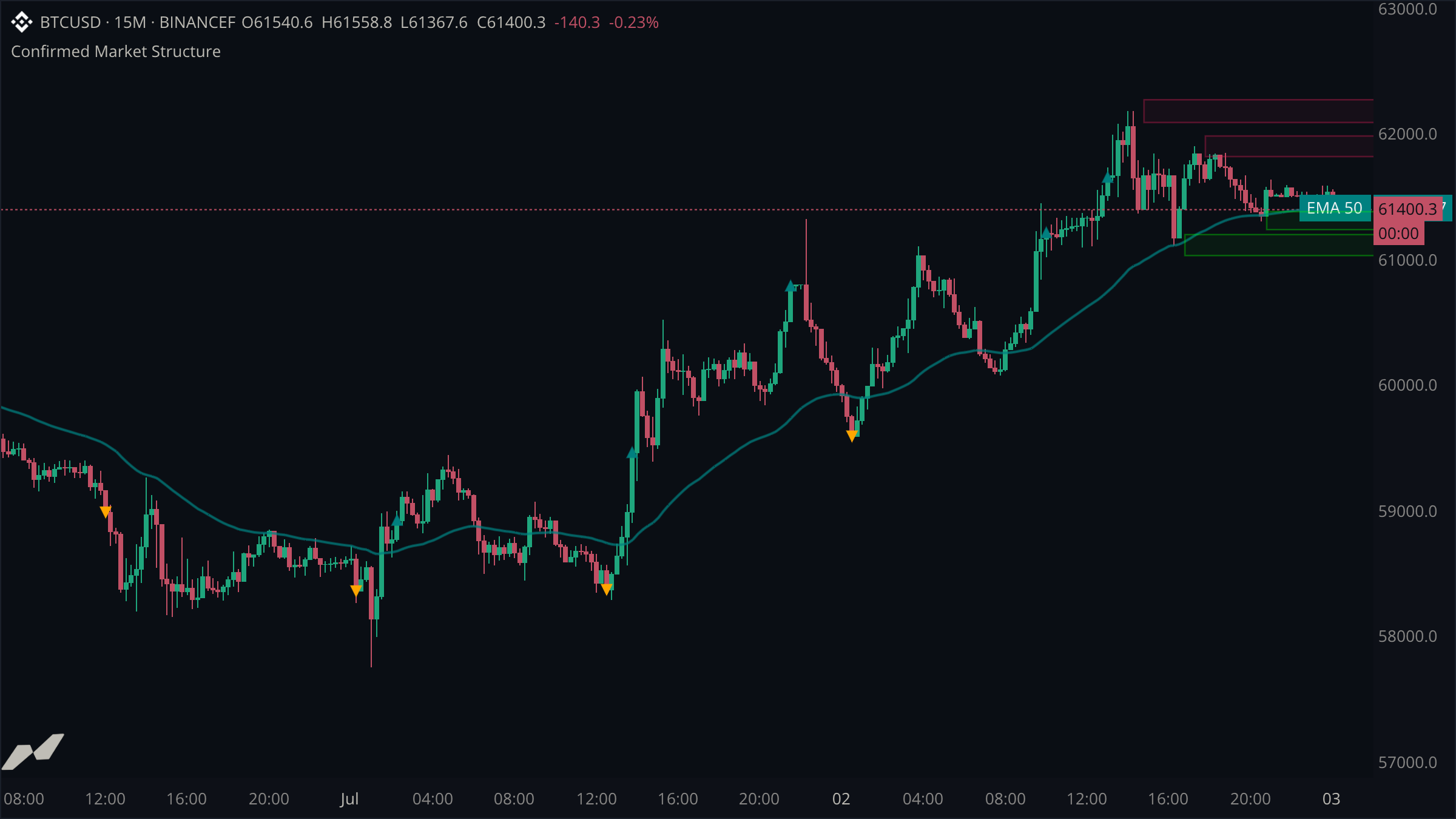
Scripting v3 is a new language and a much larger indicator platform. It adds explicit data subscriptions, multiple event handlers, richer layouts, raw market data, reusable types, and modern collection tools.
This page is a quick tour. The linked guides and examples show each feature in complete scripts.
A statically typed language
Values, function parameters, fields, and return values have known types. The editor can catch invalid calls and missing-value mistakes before the script runs.
data chart = subscribe(data.ohlcv)

fn percentChange(current: float, previous: float) -> float {
  return previous != 0.0 ? (current - previous) / previous * 100.0 : 0.0
}

on chart.update {
  let close: float = chart.close ?? 0.0
}
The ?? handles a nullable market value and produces a definite float. Learn more in missing values and functions.
Multiple handlers
A script is no longer organised around one global handler. Each subscription can react to the event that matters to it.
data chart = subscribe(data.ohlcv)
data h1 = subscribe(data.ohlcv, timeframe: tf("1h"))

state previousHigh: float? = null
plot highLine = plot.line(title: "Previous H1 High")

on h1.close {
  previousHigh = h1.high
}

on chart.update {
  highLine.plot(previousHigh)
}
Use separate handlers for confirmed higher-timeframe work, fast chart updates, period opens, or individual trades. See data and update events.
Multiple panes
Declare several panes and choose the destination of every plot. Overlay plots can remain on price while independent market-data streams each get an appropriate scale.
data cvd = subscribe(data.cvd)
data oi = subscribe(data.oi)
data vd = subscribe(data.vd)

pane cvdPane = pane(title: "CVD", height: 0.25)
pane oiPane = pane(title: "OI Change", height: 0.25)
pane deltaPane = pane(title: "Volume Delta", height: 0.25)

plot cvdLine = plot.line(title: "CVD", on: cvdPane)
plot oiChange = plot.histogram(title: "OI Change", on: oiPane)
plot delta = plot.histogram(title: "Volume Delta", on: deltaPane)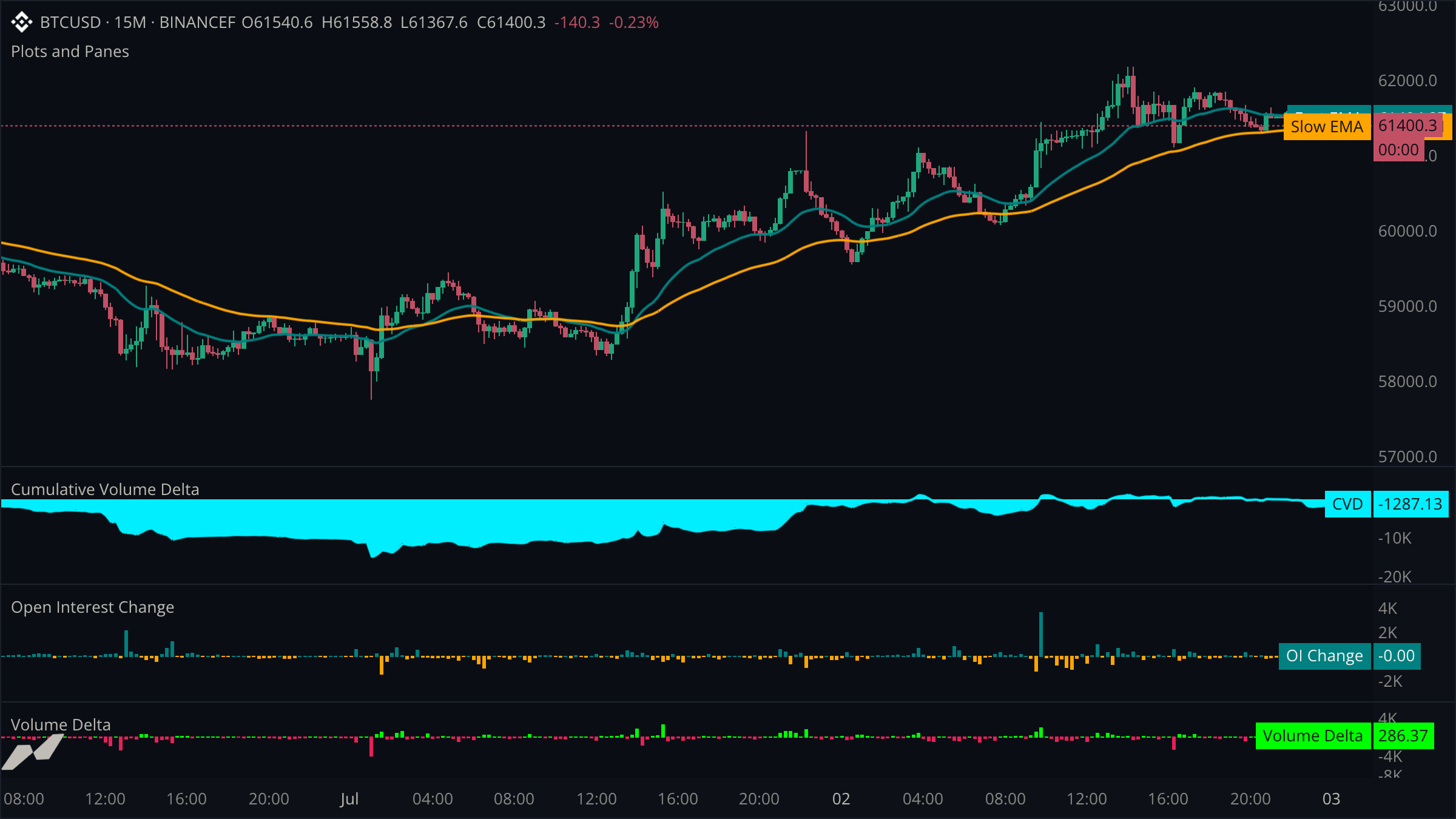
See the complete plots and panes example.
Additional windows
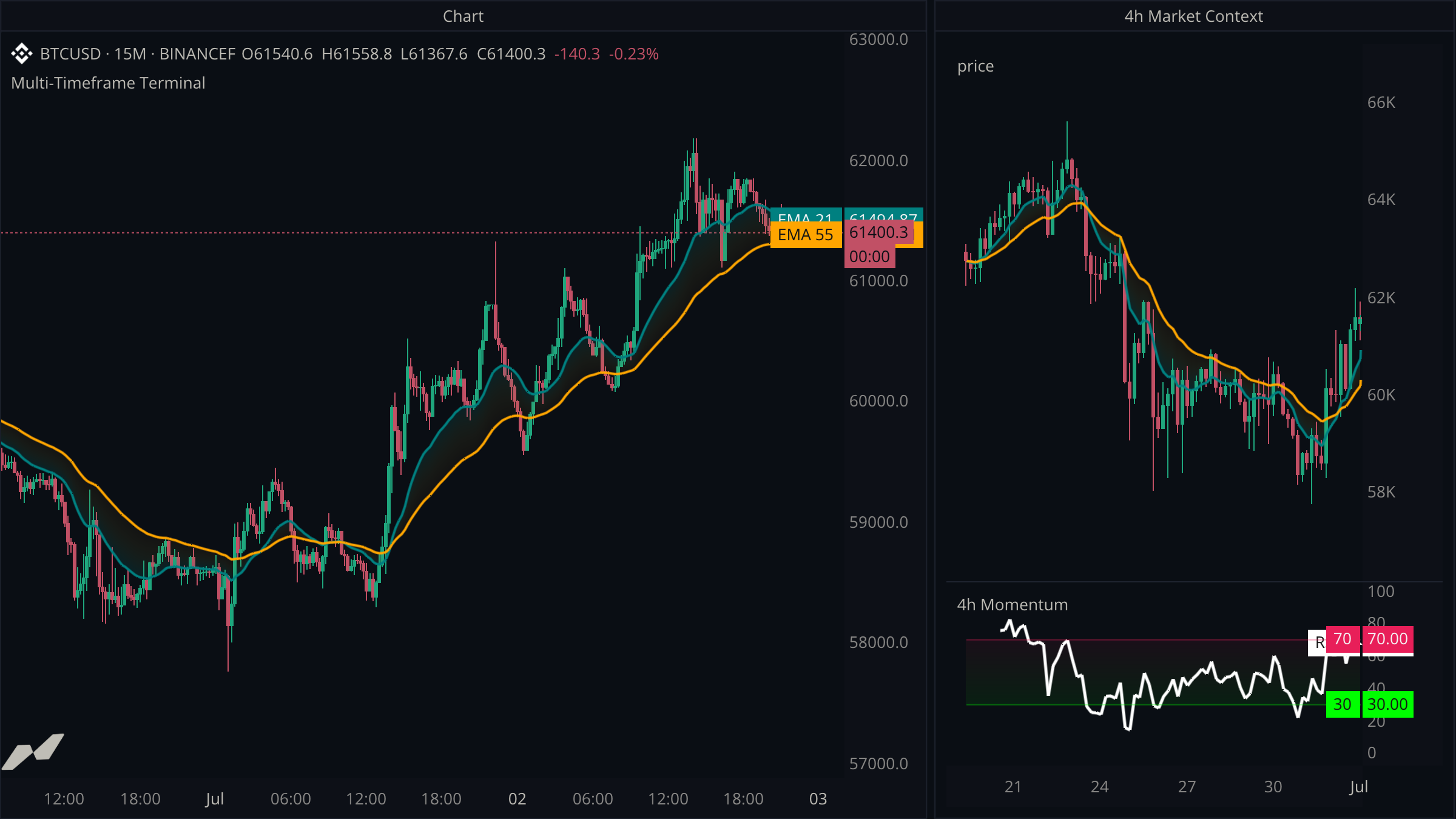
Scripts can create extra dockable windows instead of fitting every result into the host chart.
data h4 = subscribe(data.ohlcv, timeframe: tf("4h"))

window higherTimeframe = window(title: "4h Market") {
  price: chart.panel(h4, title: "4h Price"),
}
A window can contain chart panels, panes, heatmaps, and tables.
Custom axes and general charts
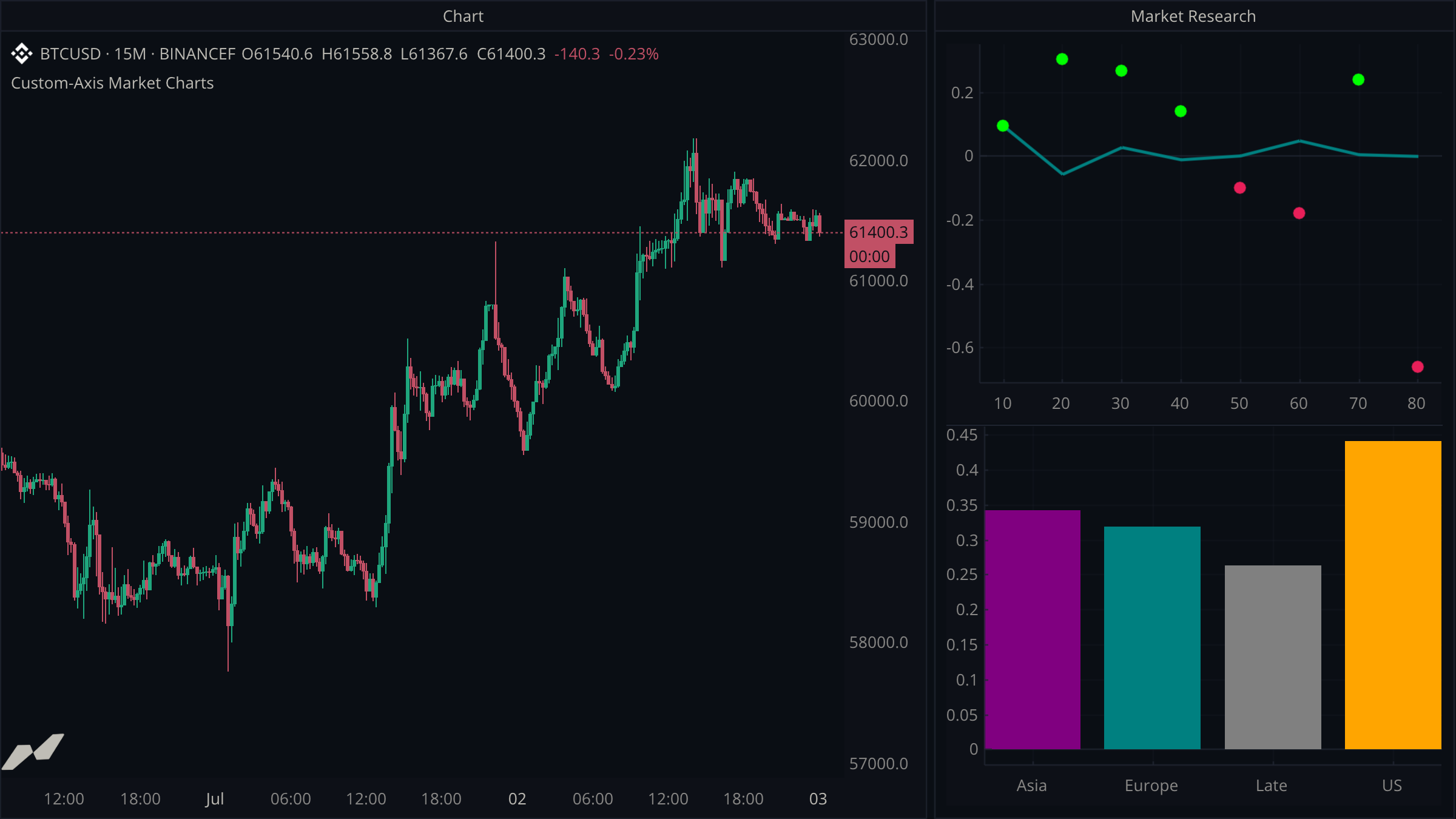
Window panels are not limited to the market's time axis. Use an index axis for numeric x-values or a category axis for named groups, then retain values by key with set.
window research = window(title: "Market Research") {
  curve: chart.panel(axis: axis.index, title: "Return by RSI Bucket"),
  sessions: chart.panel(axis: axis.category, title: "Range by Session"),
}

plot response = plot.line(title: "Average Return", on: research.curve)
plot samples = plot.point(title: "Latest Sample", on: research.curve)
plot ranges = plot.histogram(title: "Average Range", on: research.sessions)
This makes line graphs, scatter plots, distributions, term structures, and ordinary bar charts possible without pretending every x-value is a candle time.
Heatmaps
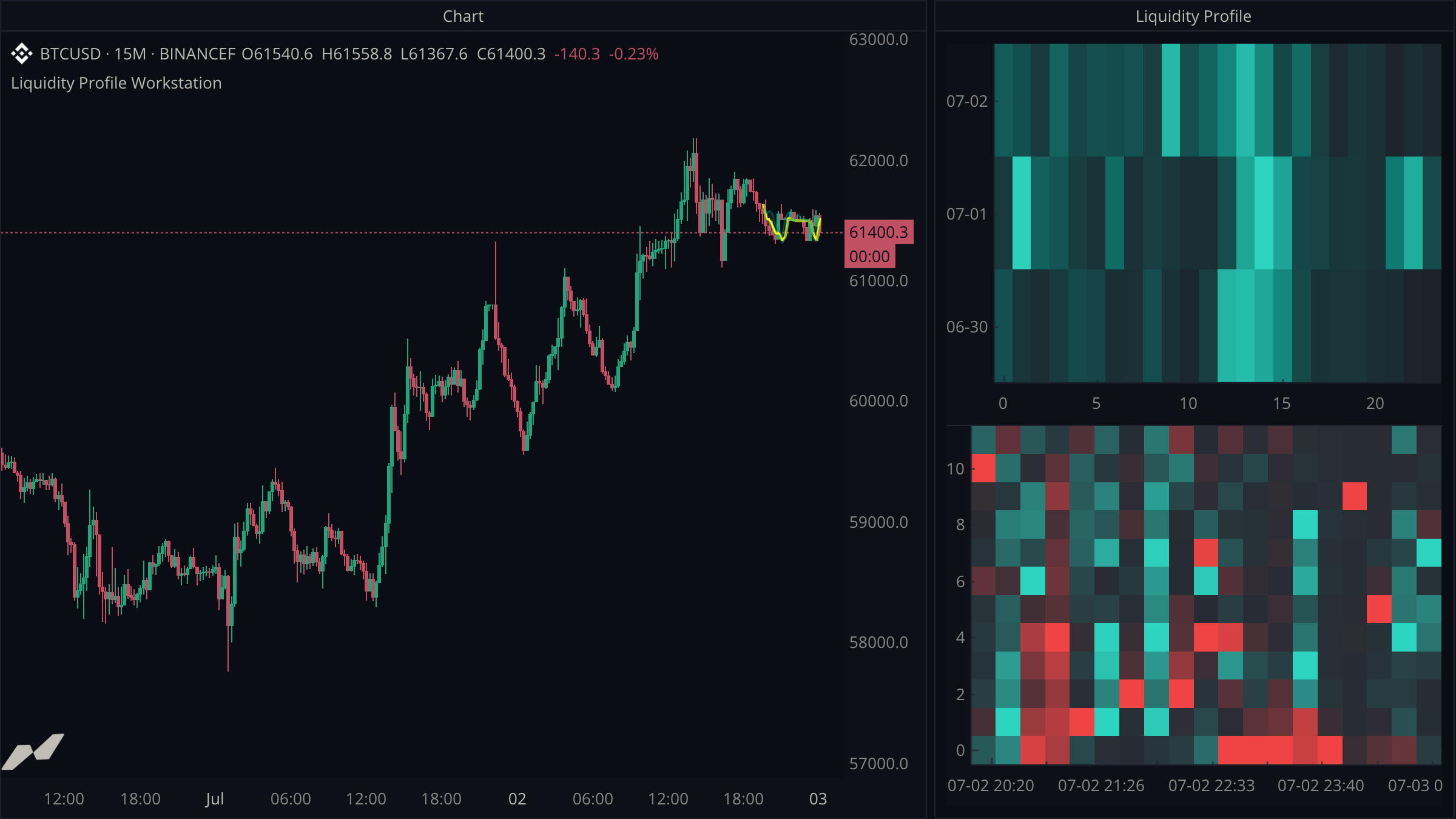
Heatmaps display two-dimensional keyed data such as volume by weekday and hour, liquidity by venue and price level, or a correlation matrix.
data hourly = subscribe(data.ohlcv, timeframe: tf("1h"))

window liquidity = window(title: "Liquidity") {
  map: heatmap.new(
    title: "Volume by Hour",
    x: axis.category,
    y: axis.index,
    capacity: 168,
  ),
}

on hourly.close {
  let hour = time.hour(hourly.time ?? time.fromUnixSeconds(0))
  liquidity.map.set("UTC", hour, hourly.volume ?? 0.0)
}
Browse the surface reference for axis and heatmap operations.
Tables
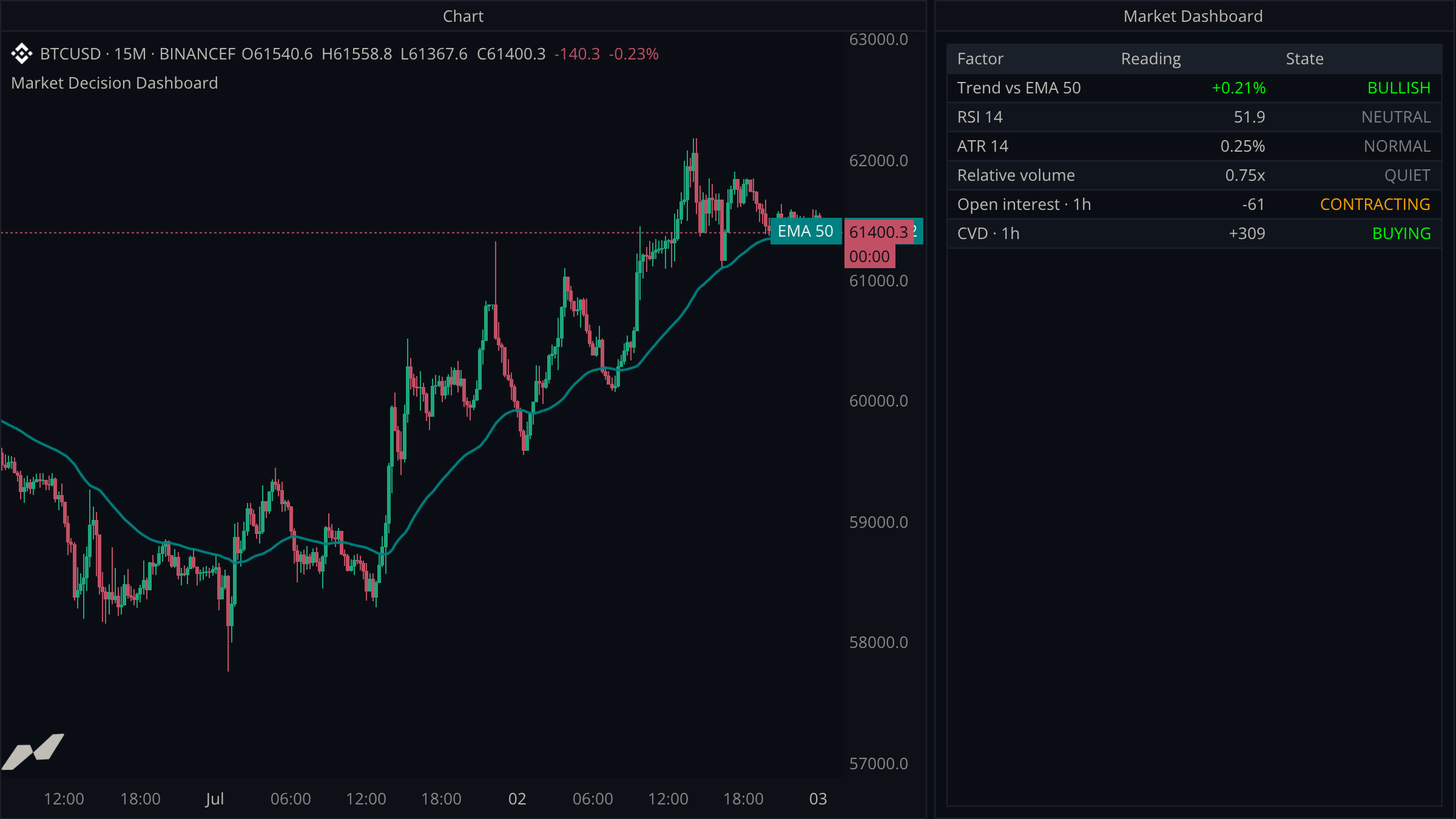
Tables are first-class output surfaces with named columns, keyed rows, alignment, and per-cell styling.
data chart = subscribe(data.ohlcv)

window dashboard = window(title: "Dashboard") {
  values: table.new([
    table.col(title: "Metric"),
    table.col(title: "Value", align: align.right),
  ], capacity: 8),
}

on chart.update {
  dashboard.values.row("price", "Last", chart.close)
}
The complete example below combines several data sources into one decision board.
Viewport-anchored visuals
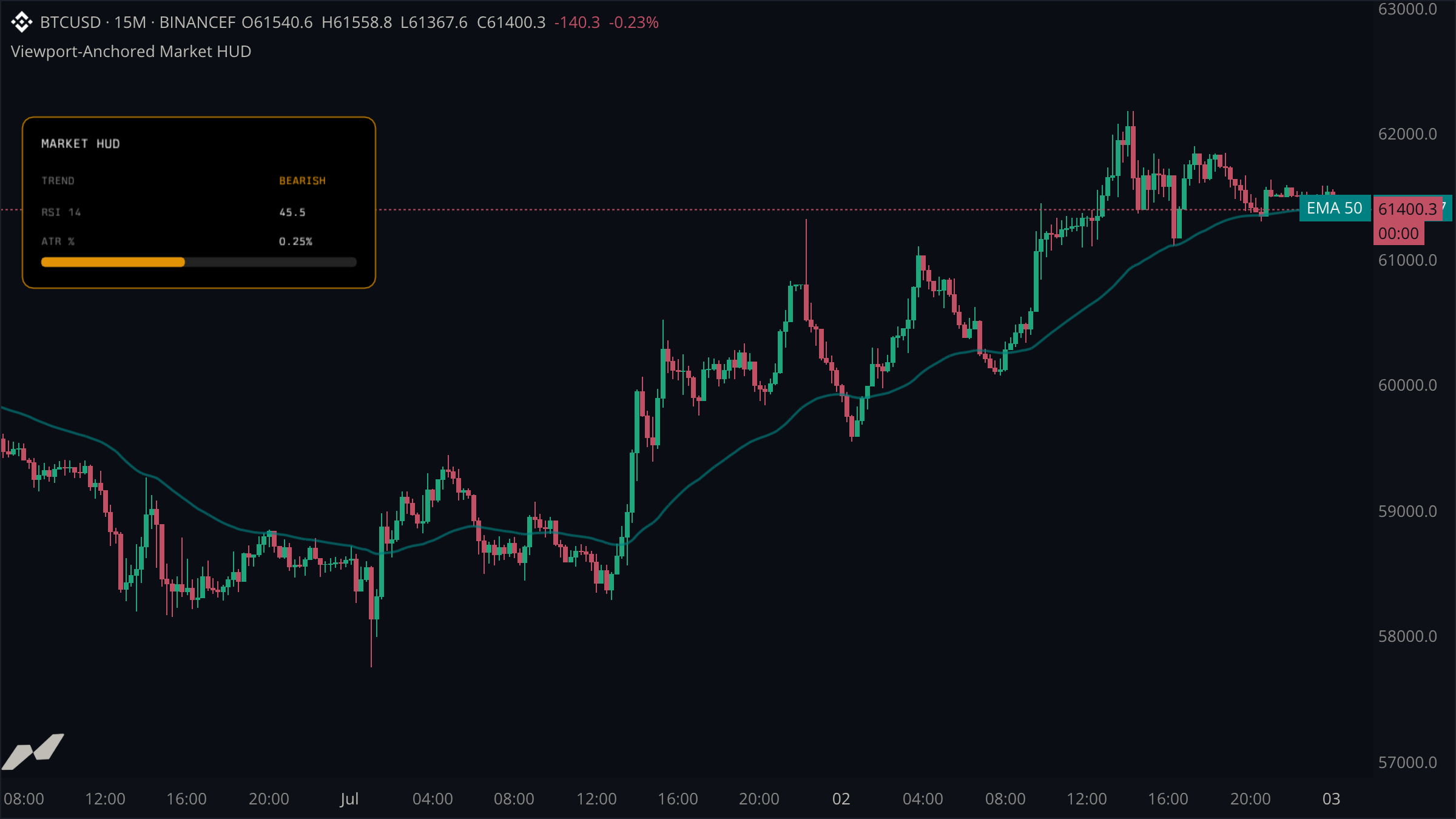
Entity pools can use viewport anchors. These visuals stay attached to a pane corner or edge rather than moving with candle time and price.
data chart = subscribe(data.ohlcv)

state status = entities.labelPool(max: 1, anchor: anchor.topLeft)

on chart.update {
  status.get("market").set(
    x: 16.0,
    y: 92.0,
    text: "LIVE",
    color: color.green,
  )
}
This makes status cards, legends, watermarks, and fixed overlays possible. Browse entities.
Edge-anchored visuals
Edge anchors pin one axis to the pane edge and leave the other in chart space. A top- or bottom-anchored pool keeps x as bar time, so its markers, labels, and bands scroll with the candles while sitting at a fixed pixel inset from the edge; left and right anchors do the same against the side edges with y staying a price.
data chart = subscribe(data.ohlcv)

state (
  signals = entities.markerPool(max: 64, anchor: anchor.top)
  bands = entities.boxPool(max: 64, anchor: anchor.bottom)
)

on chart.update {
  let t = chart.time ?? time.fromUnixSeconds(0)
  if ta.crossover(ta.ema(chart.close, 9), ta.ema(chart.close, 21)) {
    signals.get(t).set(x: t, y: 18.0, shape: shape.down, color: color.green)
  }
  bands.get(t).set(x1: t, y1: 14.0, x2: t + time.bars(1), y2: 0.0, color: color.withAlpha(color.blue, 90))
}
Lines and boxes also gain extend.up, extend.down, and extend.vertical, so a one-bar chart-space segment with extend: extend.vertical becomes a full-height session line. plot.marker and plot.label accept anchor: anchor.top or anchor.bottom; the plotted value is then the pixel inset from that edge rather than a price, and the plot stays out of the price autoscale. Browse entities and the plot reference.
Raw trades
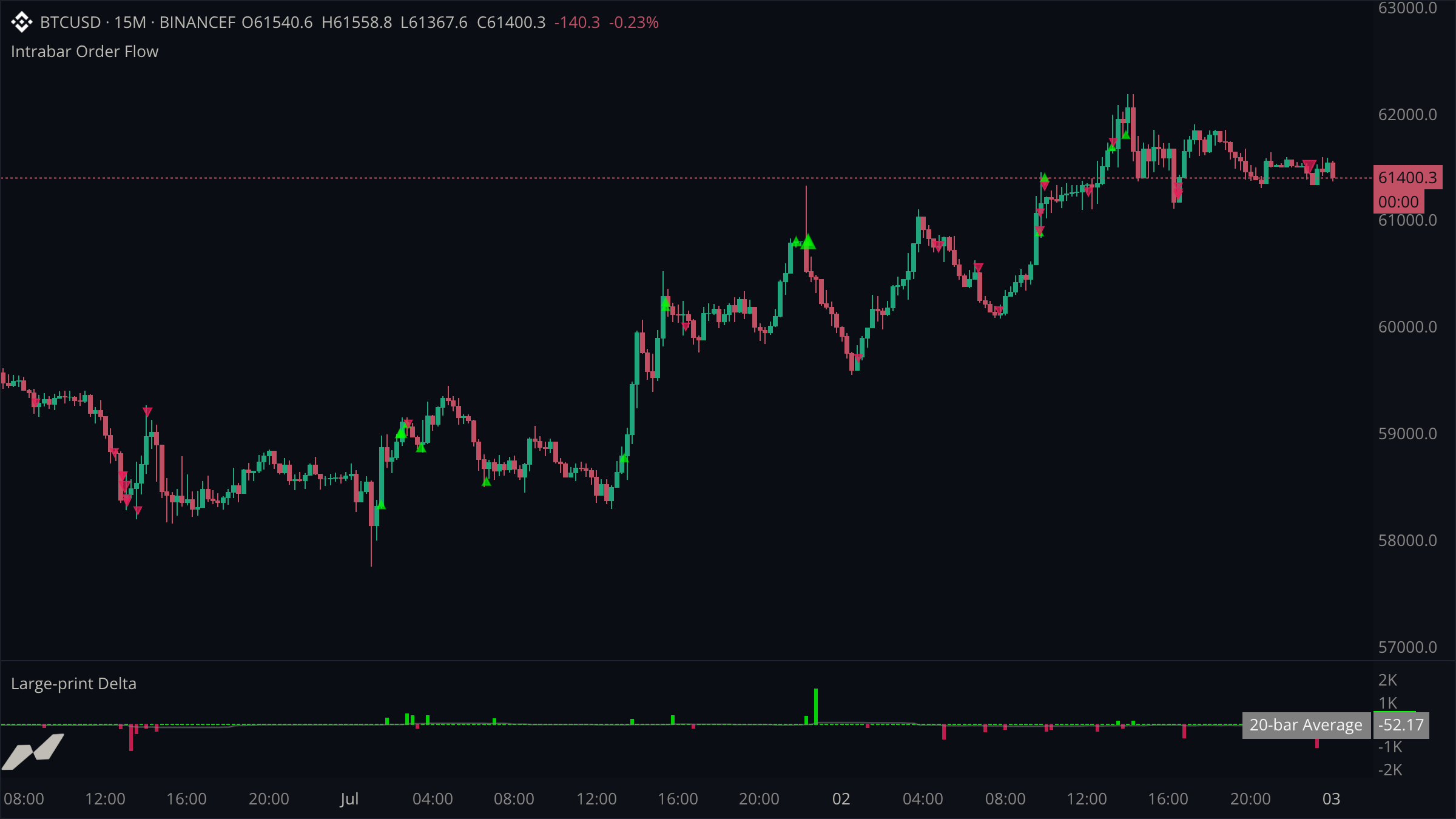
Subscribe to the trade tape and handle every print individually.
data tape = subscribe(data.trades, minSize: 10.0)

state aggressiveBuyVolume = 0.0

on tape.trade(tr) {
  if tr.isBuy {
    aggressiveBuyVolume += tr.size
  }
}
Trade-data access
Realtime raw trades are available on every plan. Historical raw trades are available on Ultra; Free and Pro scripts begin receiving the tape from the live edge.
The complete example below shows how to turn individual prints into a chart-level signal.
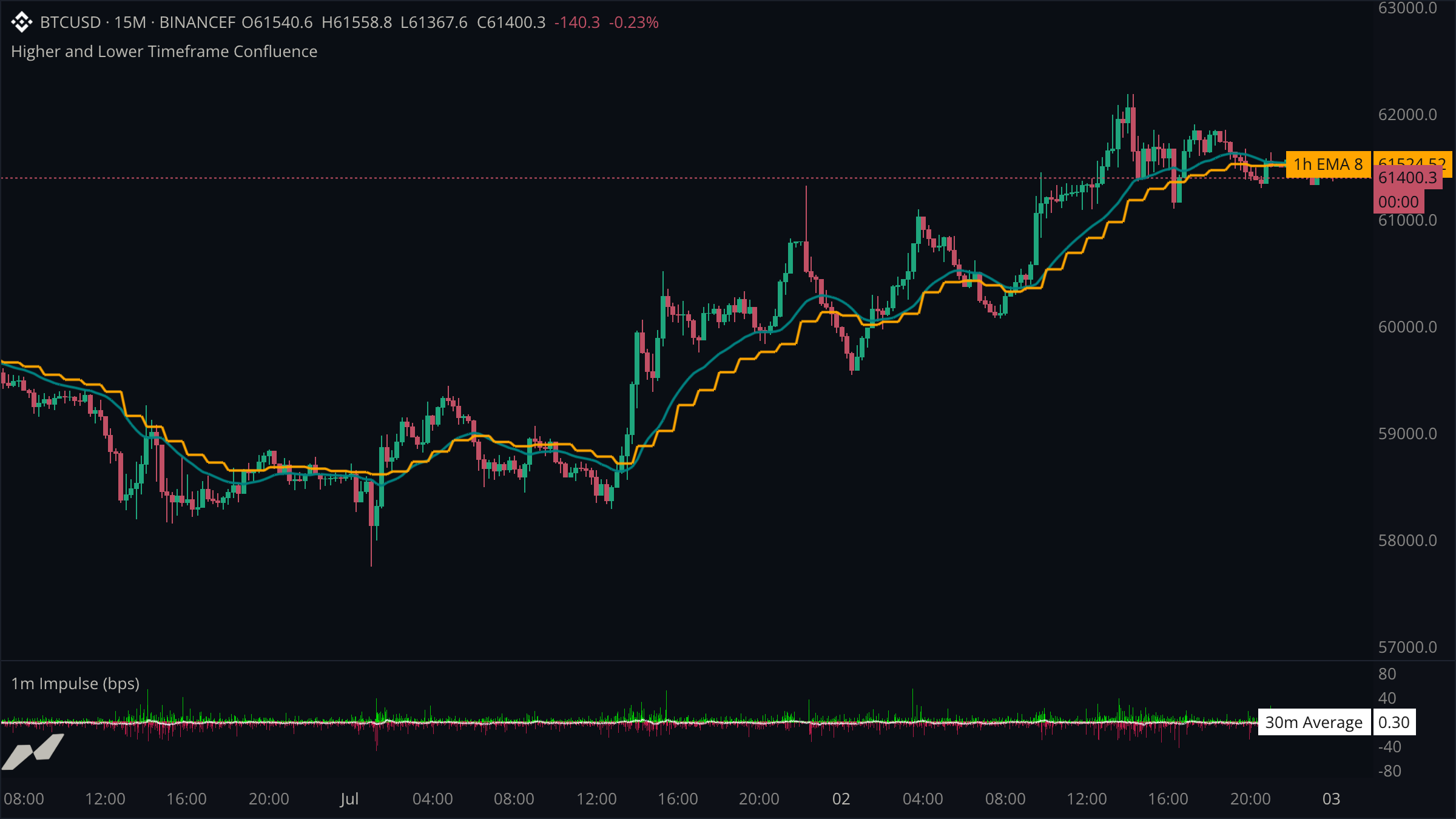
Higher and lower timeframes
A subscription can be slower or faster than the host chart. Each one keeps its own event clock.
data chart = subscribe(data.ohlcv)
data oneMinute = subscribe(data.ohlcv, timeframe: tf("1m"))
data fourHour = subscribe(data.ohlcv, timeframe: tf("4h"))

on oneMinute.close {
  // Runs for confirmed 1m candles, even on a slower chart.
}

on fourHour.close {
  // Runs when a 4h candle confirms.
}
See multiple timeframes.
Much higher performance
V3 is designed for larger scripts, more subscriptions, more outputs, and heavier analysis while keeping chart interaction responsive. Built-in technical analysis and data operations are the preferred fast path:
data chart = subscribe(data.ohlcv)
plot trend = plot.line(title: "Long-term EMA")

on chart.update {
  trend.plot(ta.ema(chart.close, 200))
}
The performance guide explains how to keep expensive work bounded and choose built-ins over manual loops where possible.
Raw order book and volume profiles
Scripts can inspect full book sides and per-price volume-profile levels, not only pre-calculated indicators.
data chart = subscribe(data.ohlcv)
data book = subscribe(data.book)
data volume = subscribe(data.volume)

on chart.update {
  let bids = book.bids()
  let asks = book.asks()
  let levels = volume.levels()
}
Built-in queries such as book.imbalance(), book.depth(), volume.poc(), and volume.valueArea() cover common calculations. The raw collections are available when you need custom logic. Browse the data reference.
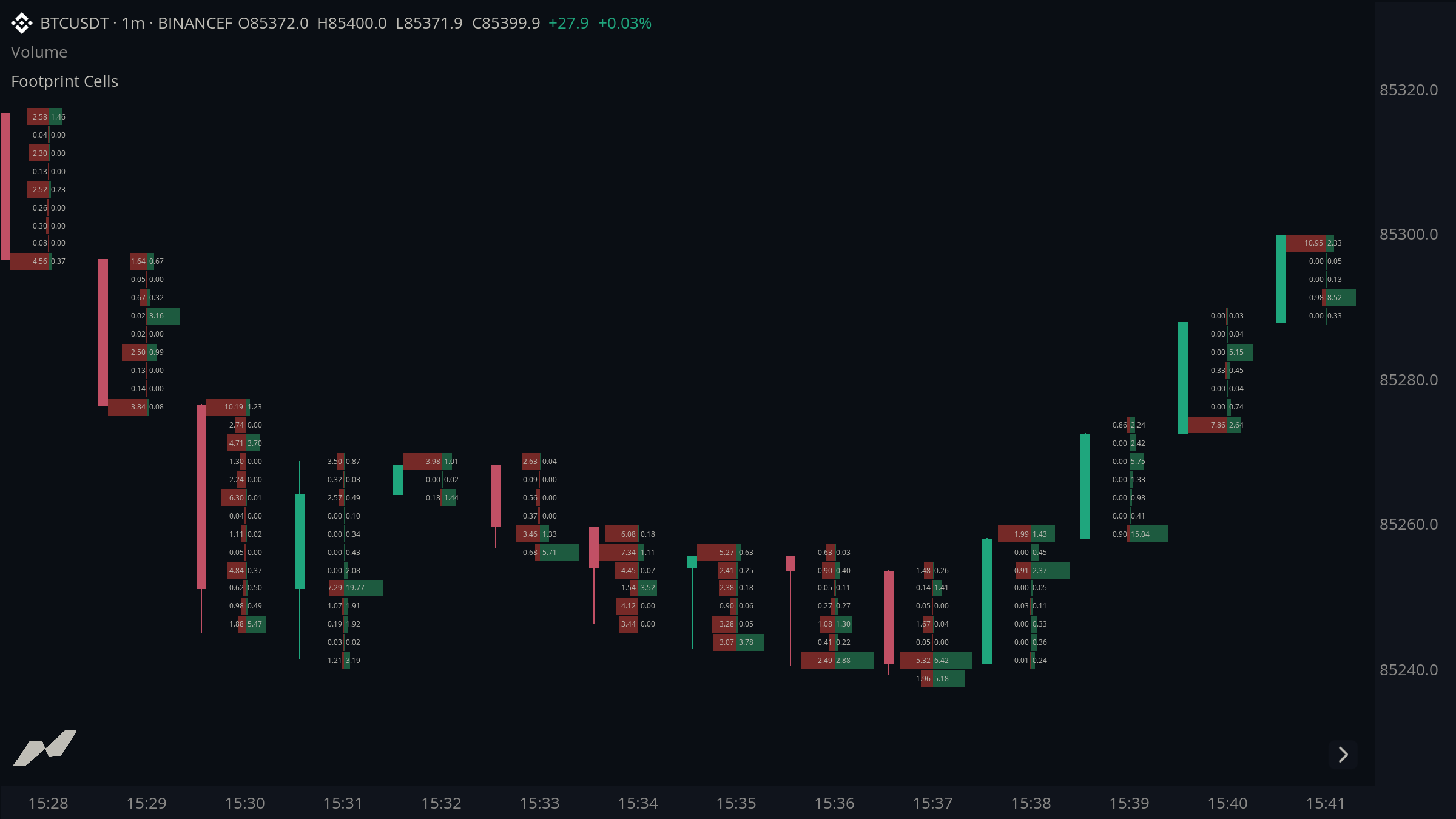
Footprints and per-bar cells
A cells plot draws rows of cells inside each bar: a price band, a width, colors, and a number. It is built for footprints, per-bar profiles, and ladders, and keeps them for far more bars than box entities can.
data chart = subscribe(data.ohlcv)
data vol = subscribe(data.volume)

plot footprint = plot.cells(
  title: "Bid x Ask",
  columns: 2,
  candles: cellcandles.side,
)

on chart.update {
  let rows = vol.bucketsByStep(25.0)
  if rows != null {
    footprint.clear(time: rows.time)
    for row in rows {
      footprint.cell(row.from, row.to, weight: row.sell, value: row.sell,
        color: #e0443a80, column: 0, align: align.right, time: rows.time)
      footprint.cell(row.from, row.to, weight: row.buy, value: row.buy,
        color: #2fa66a80, column: 1, align: align.left, time: rows.time)
    }
  }
}
candles: cellcandles.side keeps the chart's candles visible as a thin strip beside the cells, and cellcandles.hidden removes them. format, decimals, sign, and grouping choose how each number is written, from 3.21K to +3,215 or 15.3%.
Lambdas and reducers
Transform bounded collections without writing every loop manually.
let largeMoves = moves.filter(|move| math.abs(move ?? 0.0) >= threshold)
let totalMove = largeMoves.reduce(
  0.0,
  |total, move| total + math.abs(move ?? 0.0),
)
See lambdas and reducers.
Pattern matching
Use ordered patterns to classify values, handle null, or choose actions without deeply nested conditions.
let regime = match changePct {
  null => "Waiting"
  >= 2.0 => "Strong rise"
  > 0.0 => "Rise"
  <= -2.0 => "Strong fall"
  < 0.0 => "Fall"
  _ => "Flat"
}
See pattern matching.
Custom user types
Group related values and put their operations beside them as methods.
type Zone {
  low: float
  high: float

  fn contains(price: float) -> bool {
    return price >= self.low && price <= self.high
  }
}
Types work in state, arrays, maps, function parameters, and return values. See user-defined types.
Choose how much history to load
Each subscription can request the history it needs as a bar count or duration, or ask for live data only. A long-term trend can load deep candle history without forcing every other source to do the same.
data trend = subscribe(data.ohlcv, timeframe: tf("1D"), history: 500)
data recentBook = subscribe(data.book, history: 30m)
data tape = subscribe(data.trades, history: 2h)
data liveClock = subscribe(data.ohlcv, timeframe: tf("1m"), history: 0s)
tape receives the trades from two hours before the current chart bar opened, then every live trade. Because it is the script's only trades subscription on that market, only those two hours of trades are loaded, however long the chart's range is. liveClock loads nothing: history: 0s (or time.seconds(0)) means live data only, so its handlers first run once the script is live. See trade history and live-only subscriptions.
The available depth may be capped by the user's data plan. Historical trades are limited to 7 days on Ultra; that is the most a script can receive, not the amount it loads. If less history is available, early values remain missing rather than being fabricated.
Built-in entity pools
Lines, boxes, labels, markers, arrows, and fills have keyed, capacity-bounded pools. The script asks for an entity by key and updates it in place; it does not need to maintain its own recycling system.
data chart = subscribe(data.ohlcv)
state levels = entities.linePool(max: 32)

on chart.close {
  let now = chart.time ?? time.fromUnixSeconds(0)
  levels.get(now).set(
    x1: now,
    y1: chart.high ?? 0.0,
    x2: now + time.bars(20),
    y2: chart.high ?? 0.0,
    color: color.orange,
  )
}
When the pool reaches its capacity, old entries are reused automatically. See the swing levels example.
Dynamic indicator title
A script can rename its indicator row while it runs. script.setTitle takes effect on the next render, is sent only when the text changes, and the empty string restores the static script "..." name.
script "RSI"

input len = input.int(14, title: "Length", min: 2, max: 200)
data chart = subscribe(data.ohlcv)
pane rsiPane = pane(title: "RSI", height: 0.3)
plot rsi = plot.line(title: "RSI", on: rsiPane)

on chart.update {
  let v = ta.rsi(chart.close, len)
  rsi.plot(v)
  script.setTitle(str.format("RSI ({0})  {1:.1}", len, v ?? 0.0))
}
The title is display only: saved settings, alerts, and the indicator list keep using the script name. Titles are cut at 256 bytes. This replaces v2's setDisplayName.
To change a pane's title, call wt.setTitle(text) on a pane you declared. You can call it on every update. Pass an empty string to restore the original pane(title:).
script "WaveTrend"

data chart = subscribe(data.ohlcv)
pane wt = pane(title: "WaveTrend", height: 0.3)
plot wave = plot.line(title: "WT", on: wt)

on chart.update {
  let v = ta.rsi(chart.close, 14)
  wave.plot(v)
  wt.setTitle(str.format("WT  {0:.1}", v ?? 0.0))
}
A pane's legend shows the title set with setTitle, or its original pane(title:) if no replacement is set. Without either, it follows the script's title rules. Use script.setTitle for the main price pane. Changing pane titles is new in v3.
Saved appearance settings use the name from the original declaration. Creating another name with setup chosen = wt does not rename the pane, plot, or window. Settings previously saved under an alias may need to be reapplied.